Finance Inpatient Interim Bills
An interim bill is a mid-stay summary of charges generated while the patient is still admitted. It shows all services, medications, procedures, and accommodation charges accumulated so far, without closing the admission. Interim bills are used to give patients and families a cost update, collect partial payments, or meet insurance pre-authorisation requirements.
There are three ways to reach the Interim Bill, and which one you use matters — only the last two show up-to-date payment totals immediately:
- Main Menu → Inward (bed icon) → Billing → Interim Bill — lands on a blank "Find Inpatient" search box. Search the BHT and click Continue to (re)generate the bill; this always recalculates fresh, including any payments made since the bill was last opened.
- Inpatient Dashboard → Interim Bill button — opens the bill directly for the currently selected admission, freshly recalculated.
- Inward Payment page → Interim Bill button (top-right, after making a payment) — returns straight to the same admission's interim bill with totals, including the payment just made, already recalculated. This is the fastest way to confirm a payment was applied correctly.
- Locate the patient's BHT (Bed Head Ticket) via the Interim Bill search box or ward census.
- Navigate to
inward/inward_bill_intrim.xhtml. - The system loads all unbilled charges for the admission.
- Review the charge breakdown by category (Room, Nursing, Investigation, Pharmacy, Surgery, etc.).
- Verify the total and click Continue.
- Print from
inward/inward_bill_intrim_print.xhtml.
| Charge Category | Examples |
|---|---|
| Room Charges | Daily bed rate, ICU/special room premium |
| Nursing Charges | Nursing procedures, dressings |
| Investigation Charges | Lab tests, radiology, ECG |
| Pharmacy Charges | Medications dispensed from ward pharmacy |
| Surgery Charges | OT charges, anaesthesia |
| Other Services | Physiotherapy, dietary supplements |
All charges already included on a previously printed interim bill may appear again if not yet settled — verify with the billing team before collecting payment.
For users with the Show Service Charges privilege, each Charges tab (Service Details, Professional Fees, Assisting Fees) and the "Charges" summary table show the full monetary breakdown per line, not just the net value:
| Column | Meaning |
|---|---|
| Gross | The item's rate before any discount or VAT |
| Discount | Discount applied to the line |
| Service Charge | Margin/service charge component |
| Net | Gross − Discount + Service Charge (the amount billed before VAT) |
| VAT | VAT calculated on the net value, for items marked VATable with a VAT percentage set in Manage Items |
The Summary panel mirrors the same breakdown at the whole-bill level — Gross Total, Service Charge (Margin), Bill Level Discount, and VAT — alongside the existing Total Charges and Paid By Patient figures:
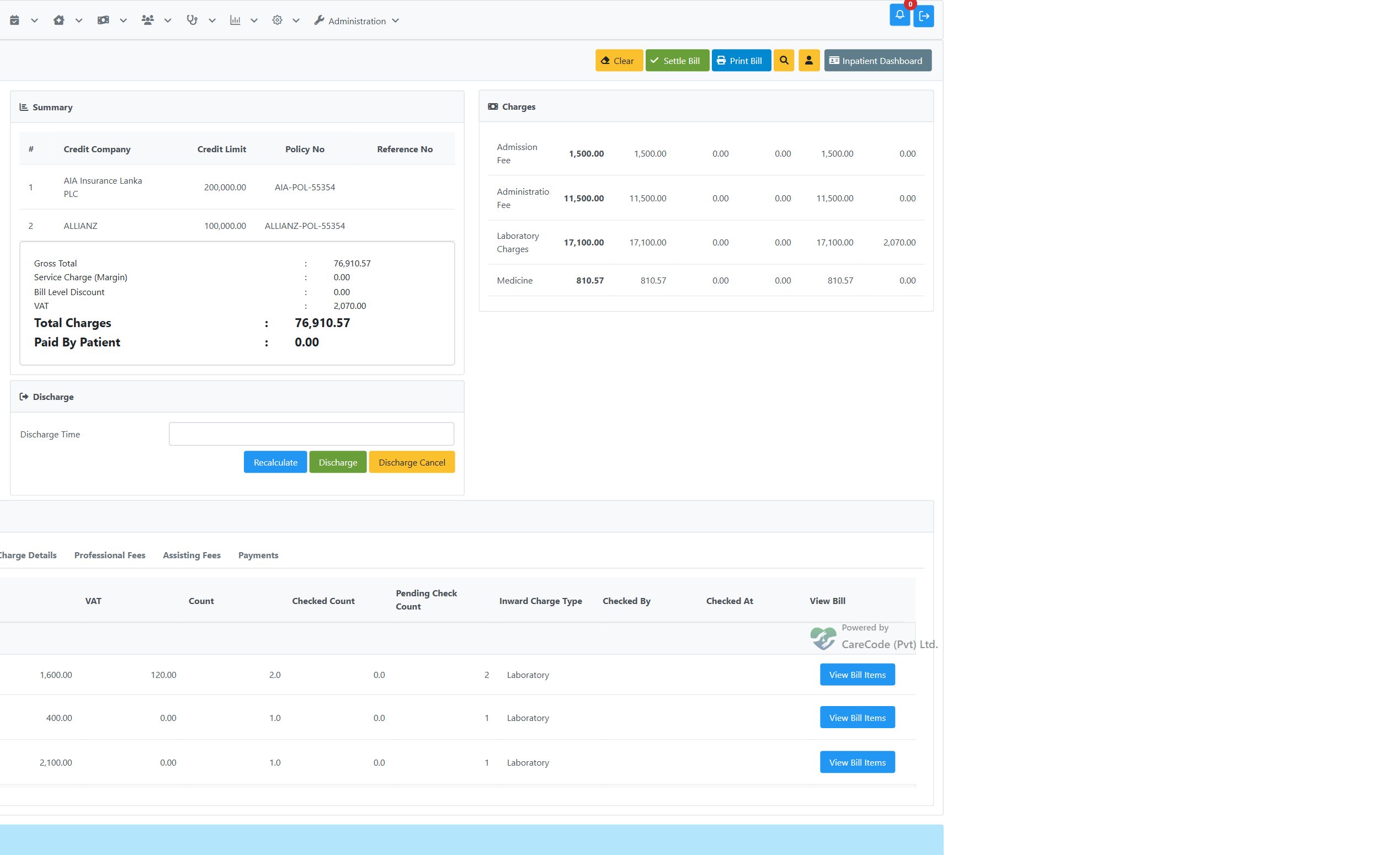
The Service Details tab breaks the same figures down per item/investigation:

Users without the Show Service Charges privilege see only the Charge Type / Total columns and the plain Total Charges summary — the breakdown columns are hidden, not shown as zero.
The Interim Bill page itself has no payment form — deposits are collected on a separate page, reached from a different top-level menu:
- Main Menu → Payments (money-check icon) → Inward Deposit → Payment.
- Search and select the patient's BHT.
- Select a Payment Mode (Cash, Credit Card, Cheque, Slip Payment, e-Wallet, Patient Deposit, or Online Settlement — note "Credit" as an overall billing method is not a selectable mode here; that is collected separately once the final bill is settled, see Inpatient Final Bill Payment).
- Enter the amount (and card/cheque/slip details if applicable) and click Pay. A deposit receipt is printed.
- To record a second payment in the same visit, click + New Payment — this returns to the BHT search box; search and select the same BHT again.
- Click the Interim Bill button (top-right) to jump straight back to the Interim Bill with Paid By Patient and Due already reflecting every payment just made — no manual refresh needed:

The patient remains admitted; the admission is not closed by interim billing.
Navigate to inward/inward_report_invoice_journal.xhtml (Invoice Journal) or use the BHT bill search to locate the interim bill and reprint.
When the Discharge button is used on the interim bill to settle and close the admission, the system enforces nursing discharge as a prerequisite (for admission types with room charges):
- If nursing discharge has not been confirmed, clicking Discharge shows: "Nursing discharge must be completed before the bill can be settled."
- If nursing discharge is confirmed but the selected discharge time is earlier than the nursing discharge time, the error is: "Discharge time must be on or after the nursing discharge time."
This means billing staff cannot close the bill until nursing staff have completed the nursing discharge step. See Inpatient — Nursing Discharge for the full workflow.
| Item | Detail |
|---|---|
| Page | inward/inward_bill_intrim.xhtml |
| Print page | inward/inward_bill_intrim_print.xhtml |
| Controller | BhtSummeryController |
| BillType | InwardBill |
| Charge model |
InwardChargeType enum (~100+ values) |