Follow the steps below to install the app on your personal Roku device for developing, testing and troubleshooting.
Authors: frothedoatmilk, cewert, tharvik, sevenrats, 1hitsong, neilsb, TwitchBronBron, jimdogx, Fyb3roptik, Artiume, grasponcrypto
- Dev Guide For The Jellyfin Roku App
Put your Roku device in developer mode. Write down your Roku device IP and the password you created - you will need these!
Navigate to where you'd like to install the app then copy the application files:
git clone https://github.com/jellyfin/jellyfin-roku.gitOpen up the new folder:
cd jellyfin-rokuYou'll need node, version 16 at least.
Then, use npm to install dependencies
npm installWe recommend using Visual Studio Code when working on this project. The BrightScript Language extension provides a rich debugging experience, including in-editor syntax checking, debugging/breakpoint support, variable inspection at runtime, auto-formatting, an integrated remote control mode, and much more.
- Download and install Visual Studio Code
- Install the BrightScript Language extension within VSCode in the Extensions panel or by downloading it from the VSCode Marketplace.
-
Open the
jellyfin-rokufolder in VSCode -
Press
F5on your keyboard or clickRun->Start Debuggingfrom the VSCode menu.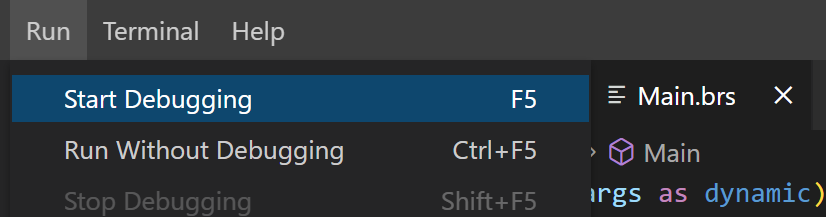
-
Enter your Roku IP address and developer password when prompted
That's it! VSCode will auto-package the project, sideload it to the specified device, and the channel is up and running. (assuming you remembered to put your device in developer mode)
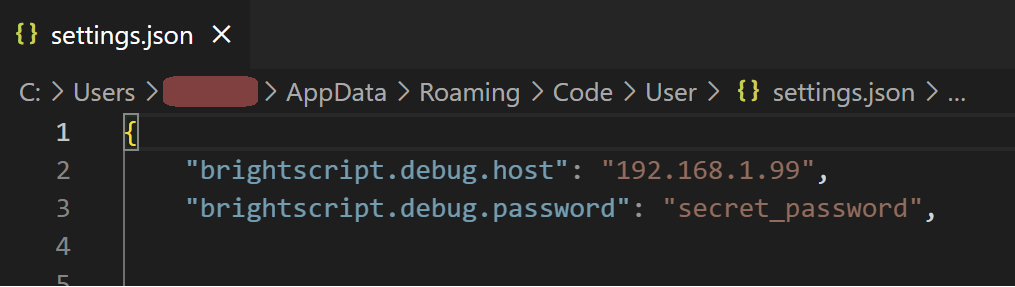
Out of the box, the BrightScript extension will prompt you to pick a Roku device (from devices found on your local network) and enter a password on every launch. If you'd prefer to hardcode this information rather than entering it every time, you can set these values in your VSCode user settings:
{
  "brightscript.debug.host": "YOUR_ROKU_HOST_HERE",
  "brightscript.debug.password": "YOUR_ROKU_DEV_PASSWORD_HERE"
}
Example:
If you want to help with testing a Release Candidate or to test a Pull Request to see if it fixes an issue for you, you can sideload the build artifact.
-
Obtain the build artifact zip file.
- Release Candidate build artifacts will be provided by a Jellyfin Roku team member.
- For testing a specific Pull Request, click on the "Checks" tab on the PR page and then "Build". The artifact download link is available on this page for signed-in users.
-
Put the Roku in Developer Mode as mentioned above. This only needs to be done once.
-
Navigate to the Roku device in a web browser, typically by IP address.
-
Use the ‘Upload’ button to upload the build artifact file.
-
Click ‘Replace with zip’.
Jellyfin should appear on the device. You are now testing the build artifact!
The Jellyfin install from the Roku app store is a separate app on the device and unaffected by sideloading.
Did the app crash? Find a nasty bug? Use this command to view the error log and report it to the developers:
telnet ${ROKU_DEV_TARGET} 8085To exit telnet: CTRL + ] and then type quit + ENTER
Before committing your code, please run:
npm run lintAnd fix any encountered issue.
Your new functionality may need a setting to configure its behavior, or, sometimes, we may ask you to add a setting for your new functionality, so that users may enable or disable it. If you find yourself in this position, please observe the following considerations when adding your new user setting.
- Any menu titled "General."
- Any settings that have children, in alphabetical order.
- Any settings that do not have children, in alphabetical order.
Ideally, your setting will be named with a relevant noun such as Cinema Mode or Codec Support. Sometimes there is no such name that is sufficiently specific, such as with Clock. In this case you must use a verb phrase to name your setting, such as Hide Clock. If your verb phrase must be long to be specific, you may drop implied verbs if absolutely necessary, such as how Text Subtitles Only drops the implied Show. Do not use the infinitive form action-doing or doing stuff. Instead, use the imperative: Do Action or Do Stuff. Remember that characters are a commodity in names.
Generally, we should not repeat the name of a setting's parent in the setting's name. Being a child of that parent implies that the settings are related to it.
A setting's description should begin with a grammatically correct, complete, imperative sentence that ends with a period. Characters are not a commodity in descriptions so be specific. Again, do not use infinitive verb phrases ("...ing" should not appear anywhere in the text of your setting). While the first sentence should be imperative, additional sentences may be necessary to tell your user how to use the setting or why its doing what its doing. If you must use non-imperative sentences, be concise and consider the fact that your description will need to be translated into many languages. Do not use colloquialism, metaphor, or idiomatic phrases.